Manage participants in repository projects
Inside Repository & Analysis, the People section allows you to manage everyone associated with a project. This includes both research participants and project stakeholders.
The People section helps you manage and organize contact details related to your project in a single place.
Accessing the People Section
To manage project contacts:
-
Open your project inside Repository & Analysis.
-
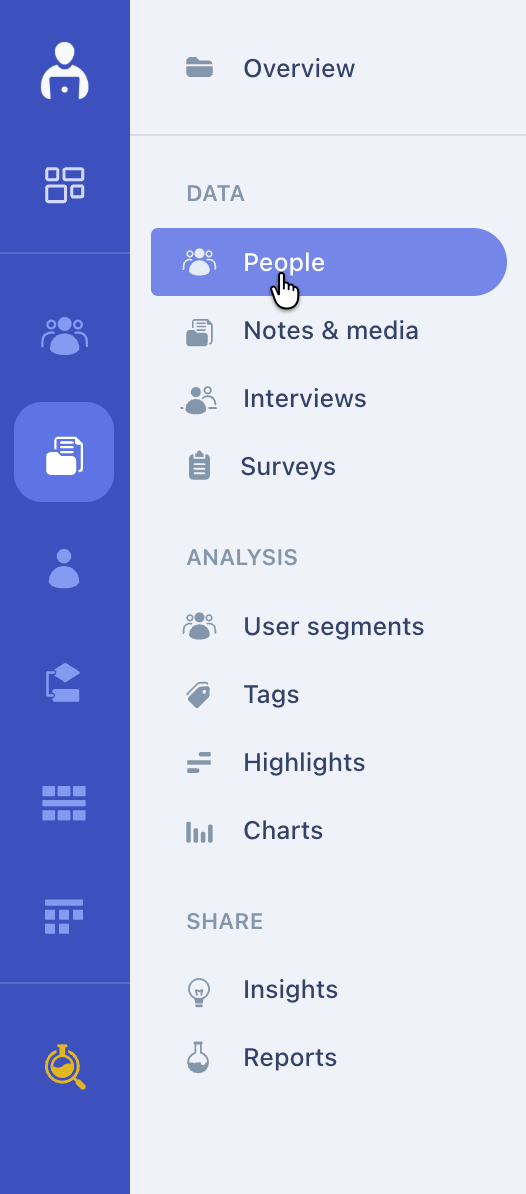
Click on People from the left navigation menu.
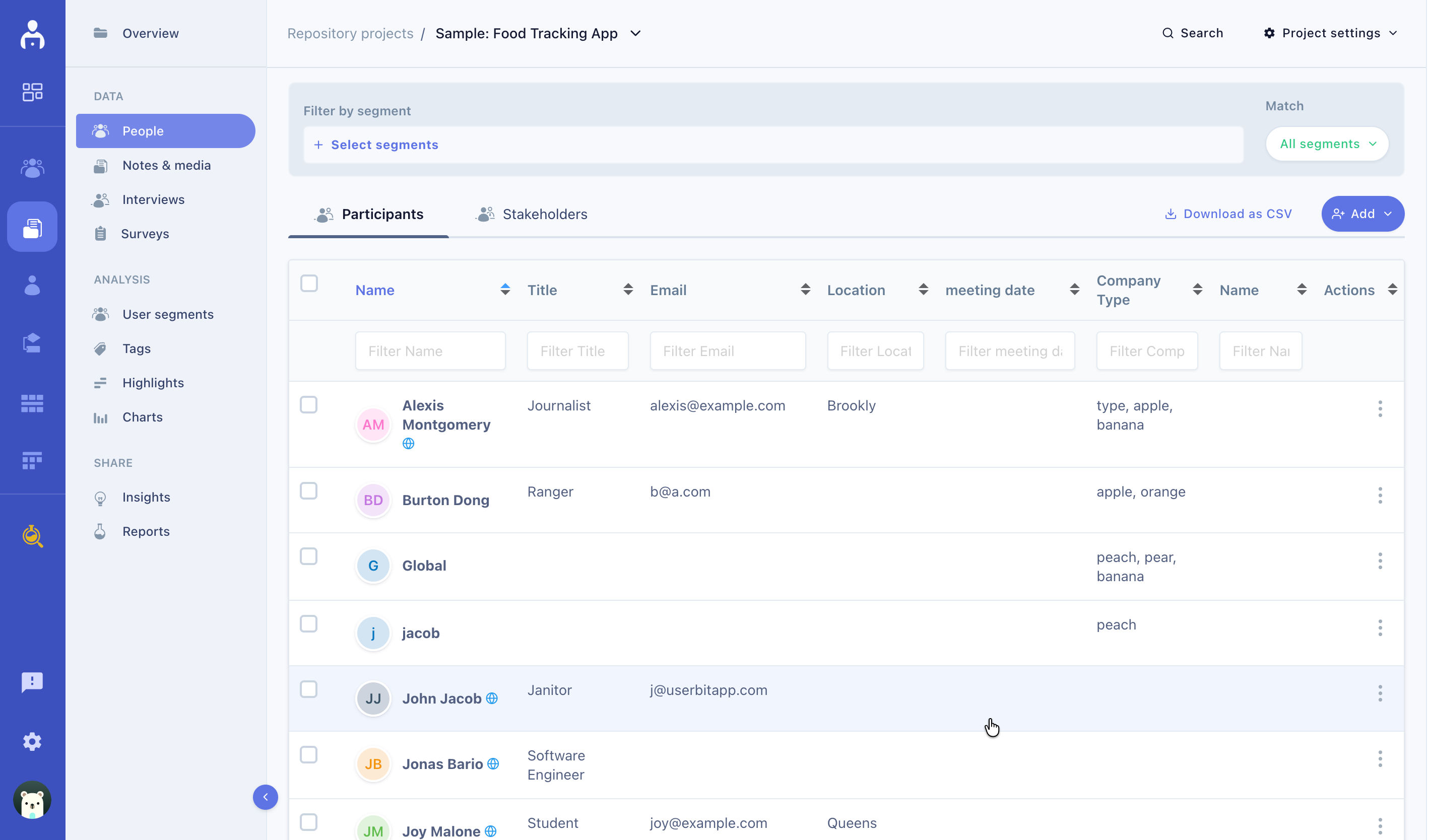
You will see two tabs at the top of the page:
- Participants
- Stakeholders
Participants
The Participants tab is used to manage individuals who take part in your research activities such as interviews, surveys, or studies.
Here, you can:
-
View participant details (name, title, email, location, company type, etc.)
-
Filter and sort participants
-
Segment users
-
Download participant data as CSV
-
Add new participants
Adding Participants
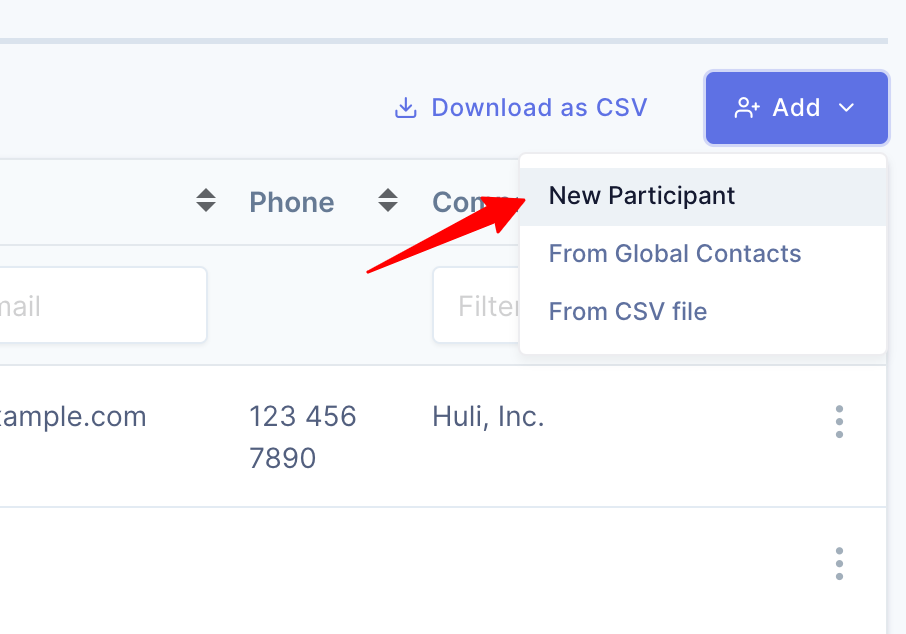
Participants can be added in three ways using the Add dropdown located in the top-right corner.
1. Add a New Participant
This option is useful when adding individuals one at a time. You can input contact information, attributes, and any relevant metadata required for your research.
To add a new person, click on Add > New Participant. On the resulting popup, you can add the relevant information about this contact. There are some in-built fields that UserBit provides for you:
- Name
- Title
- Phone
But you can add custom fields to accomodate any other information for your contacts.
2. Add From Global Contacts
Select From Global Contacts to import participants that already exist in your UserBit's Participants CRM database. This is ideal if you reuse participants across multiple projects, helping you avoid duplicate entries and maintain consistency.
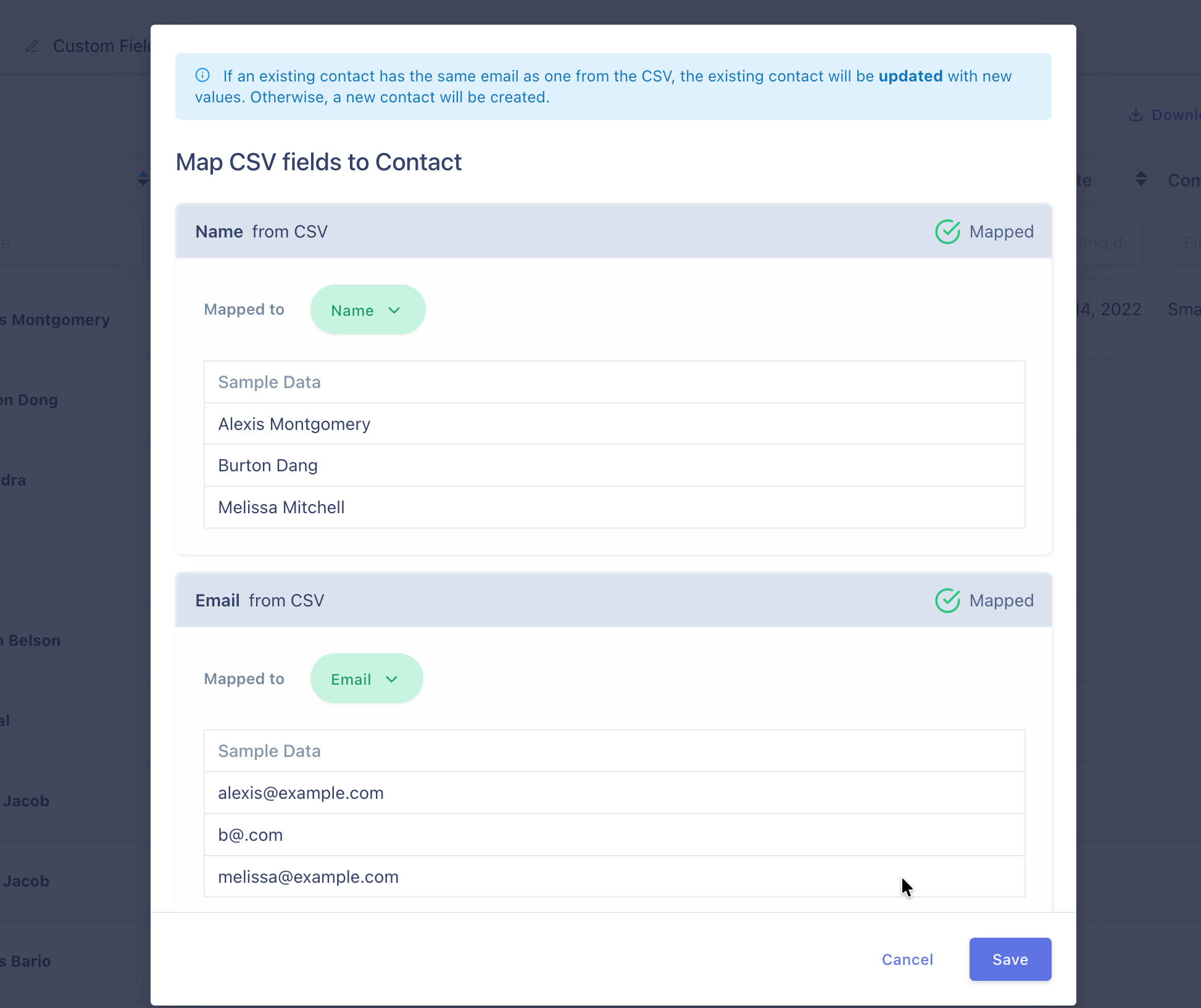
3. Import From CSV File
This option is useful when you want to add people in bulk. If you have contacts already saved as an external CSV file, you can import them directly into your project. Navigate to the Add > From CSV file. Once the file is uploaded, UserBit will prompt you to select columns from your CSV sheet to participant fields.
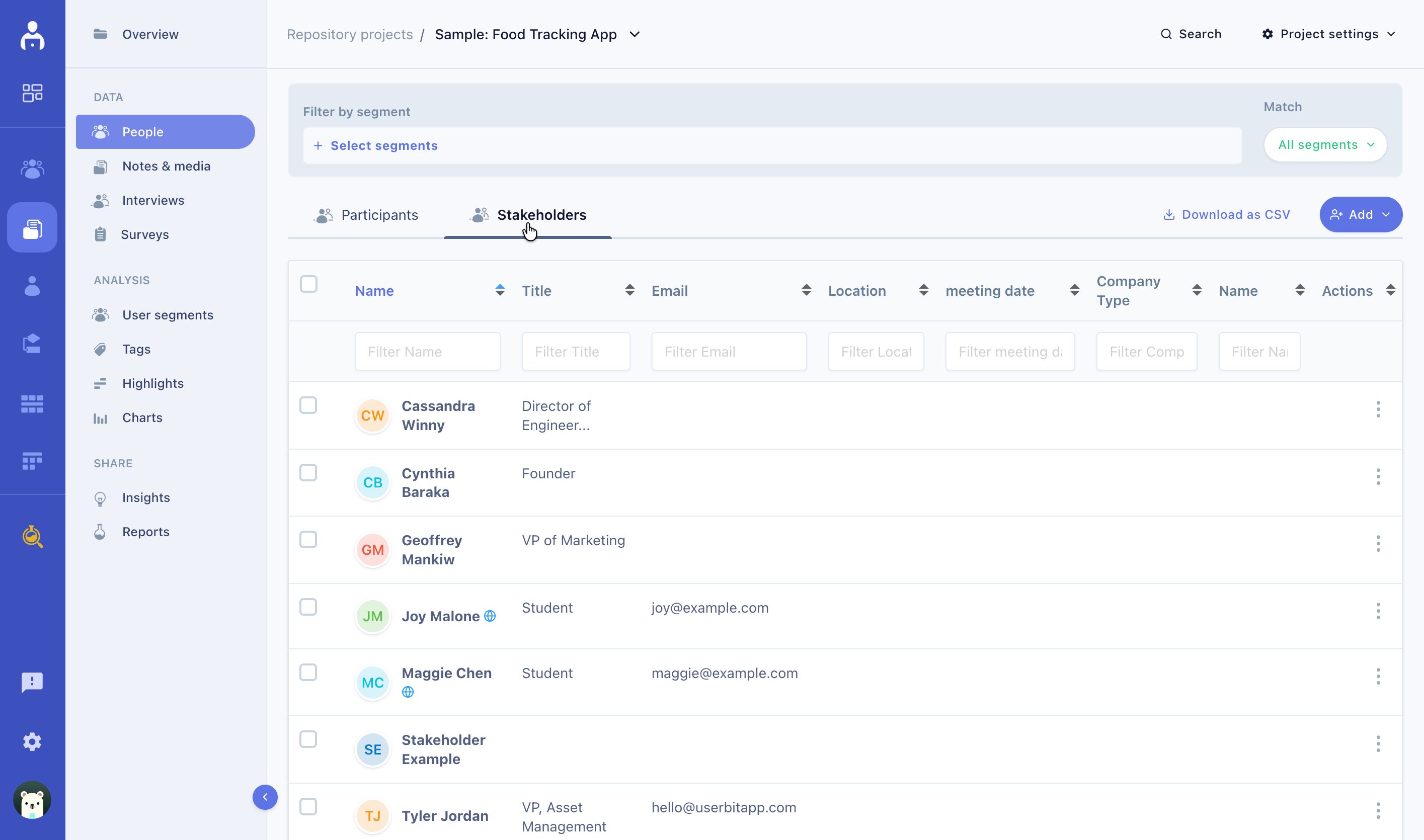
Stakeholders
The Stakeholders tab is used to manage clients or collaborators associated with the project. Stakeholders can be managed similarly to participants, allowing you to maintain clear visibility into who is involved in the project.
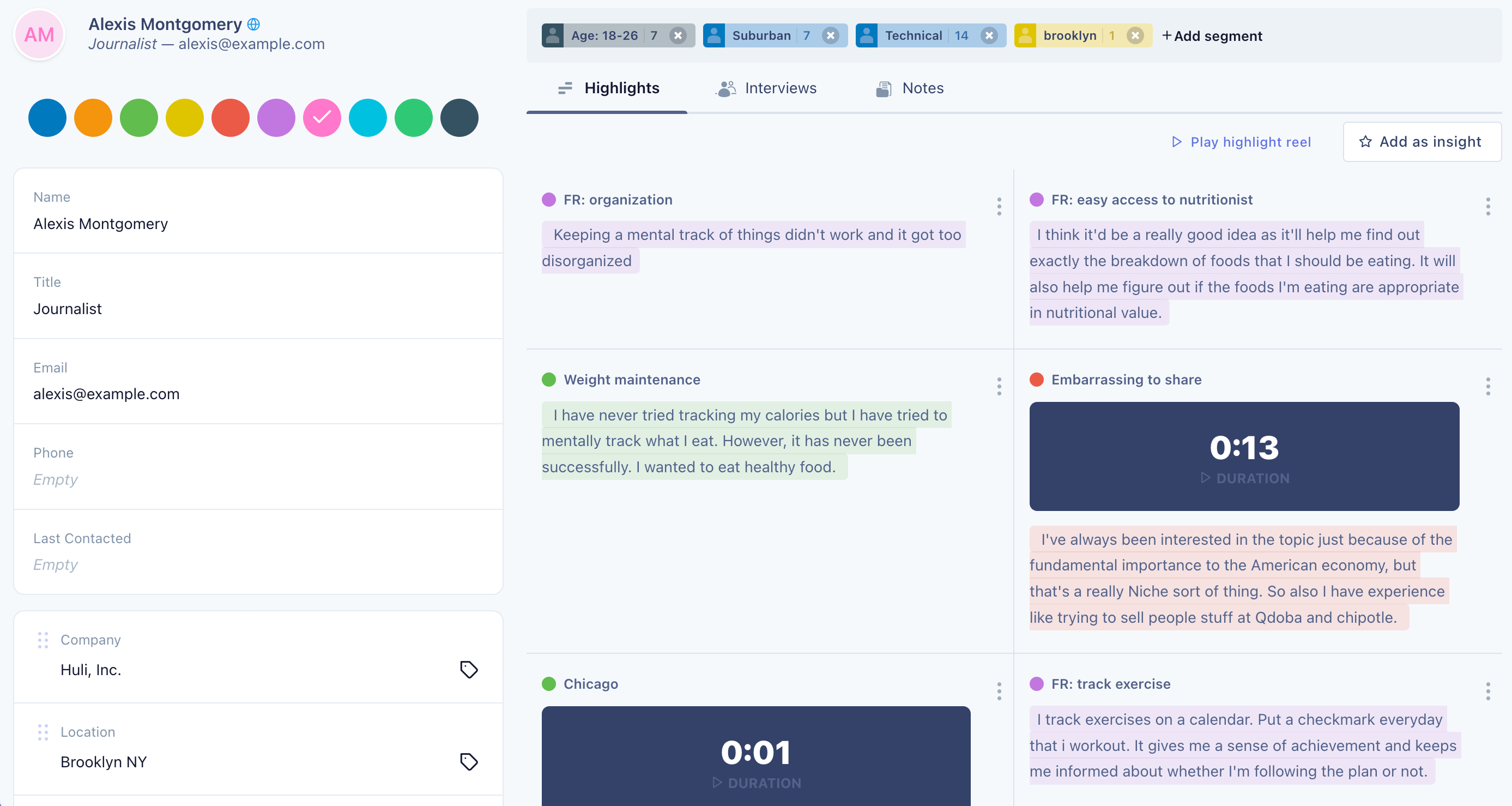
Add qualitative data for research participants
With UserBit, you have one place for all your participant's qualitative data.
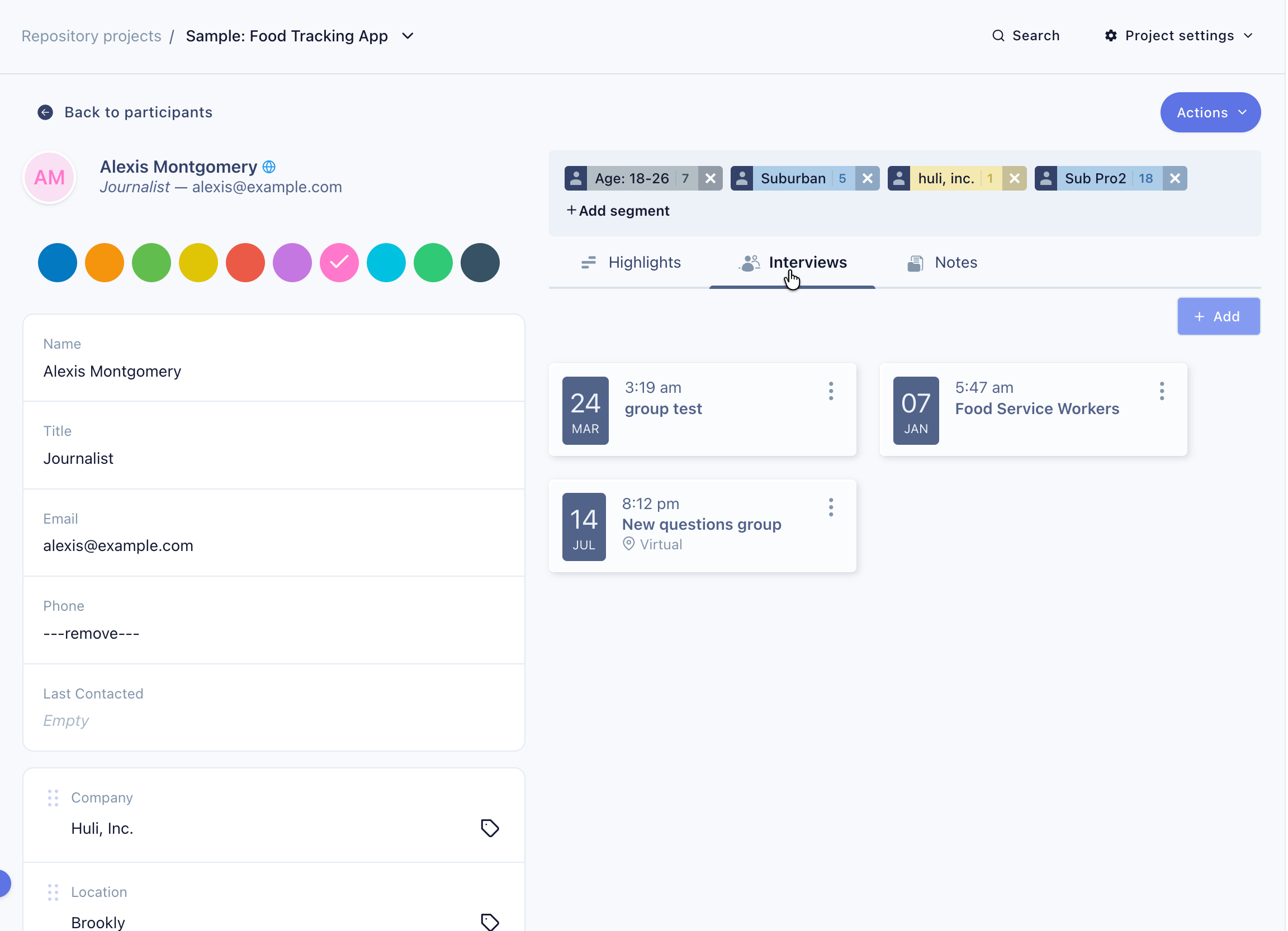
Participant Interviews
Interview module allows you to manage user interviews. You can create interviews for your participants directly from the participant profile. Each participant can have multiple interviews.
Participant Notes
Just like interviews, you can create multiple notes for each particpant to capture unstructured data for them. Existing notes can also be attached to a participant - Actions > Link with participant.
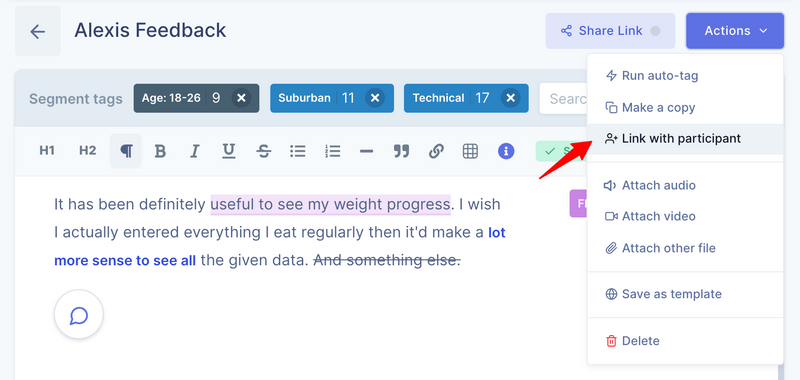
When you attach a note to a participant, UserBit creates a special folder in the Notes & Media section for that participant. This way, you can quickly access all notes for a given participant from the Notes & Media section as well.
Save local contacts as global
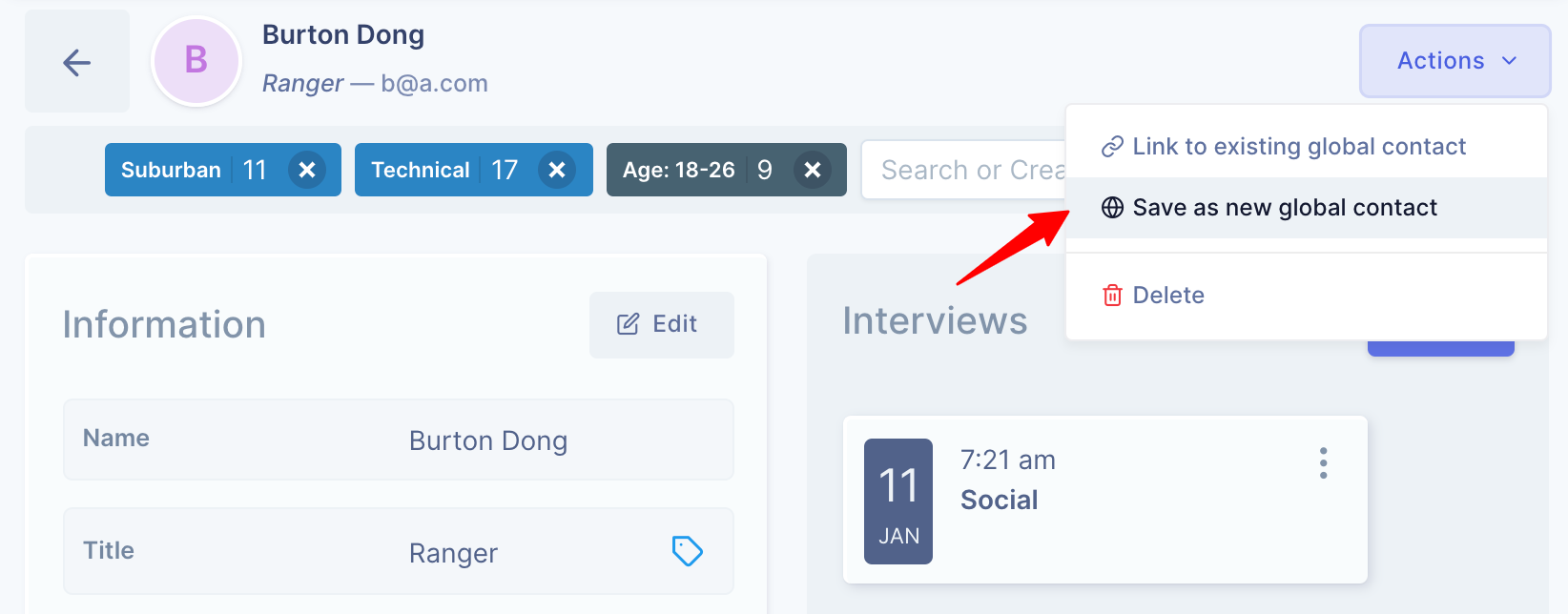
An existing local participant can also be saved as a global contact. From the participant profile, Actions > Save as new global contact.
Once a local contact is saved as a global contact then they appear in the Participants CRM section and can be shared across multiple projects and studies.