Manage journey maps in UserBit
Manage journey maps on your terms
You can turn the Journey Map package on or off in your workspace at any time using a single toggle. When the package is enabled, Journey Maps are added to your workspace and become available for use. When disabled, Journey Maps are removed from the workspace and no longer accessible.
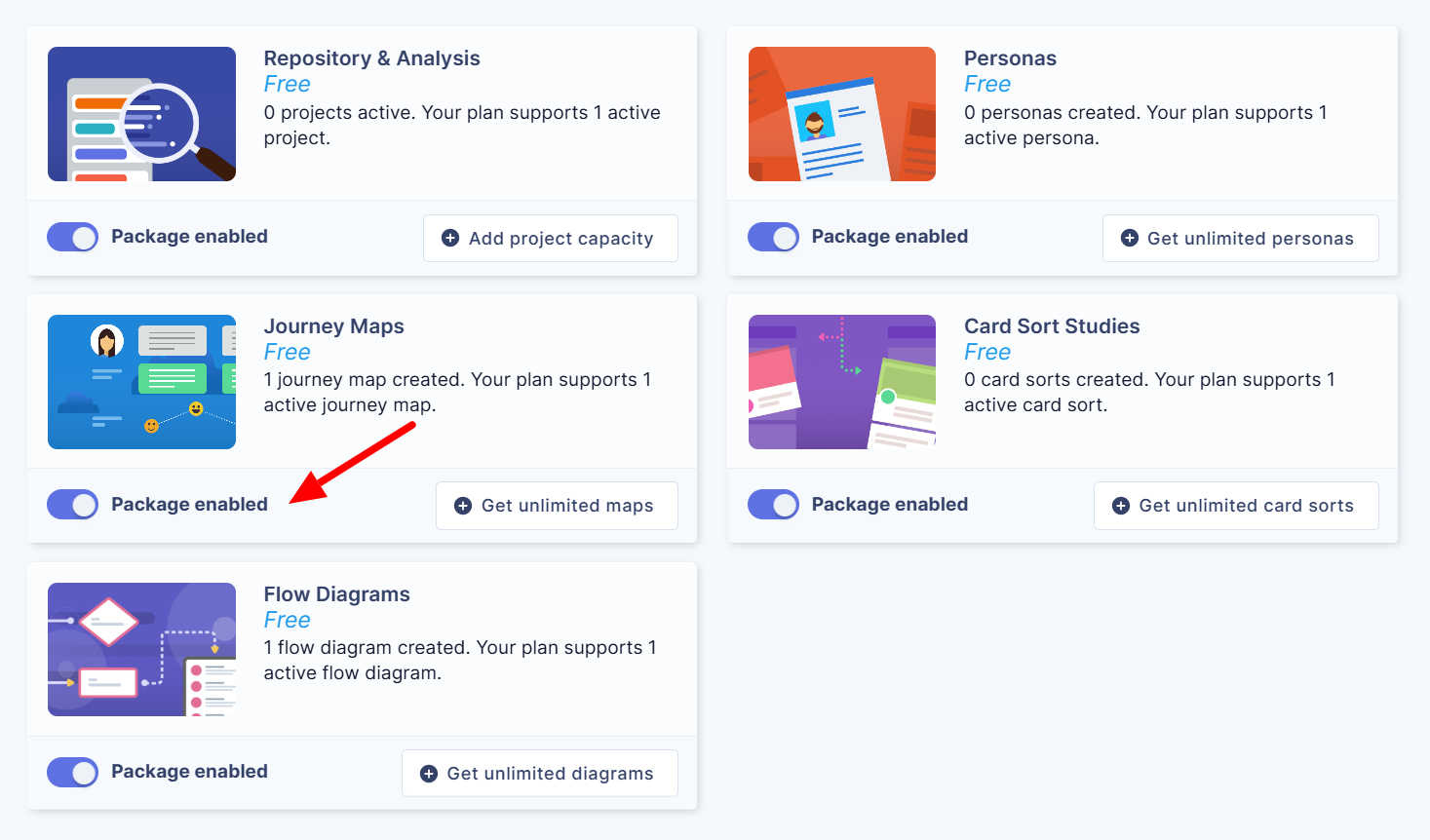
Learn more about configuring your workspace.

Once the Journey Map package is enabled, the Journey Maps feature is automatically added to your workspace. You’ll see a new Journey Maps section appear in the navigation area, making it easy to access and create maps.
Free plan vs Unlimited plan
Your ability to create and manage journey maps depends on your subscription plan. Understanding these differences helps you know what to expect and when to consider upgrading.
Asset | Free | Unlimited |
Journey map | 1 Active map (unlimited inactive maps for upto 6 months) | Unlimited maps |
Team Members | Unlimited | Unlimited |
AI Automations | 5 | 10 / month |
Client Portal | No | Yes |
Trash functionality | No | Yes |
Integration with other UserBit tools | No | Yes |
Export | No | Yes |
Trash/Recover
On the Unlimited plan, deleted journey maps aren’t removed permanently right away. Instead, it’s moved to trash, giving you a safety window of 15 days from the time of deletion to recover it.
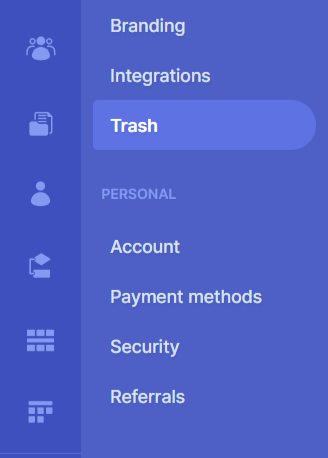
How the trash functionality works:
-
When a journey map is deleted, it remains in the trash for 15 days from the time of deletion.
-
During this period, you can restore the journey map at any time.
-
After 15 days, the journey map is permanently deleted and can no longer be recovered.
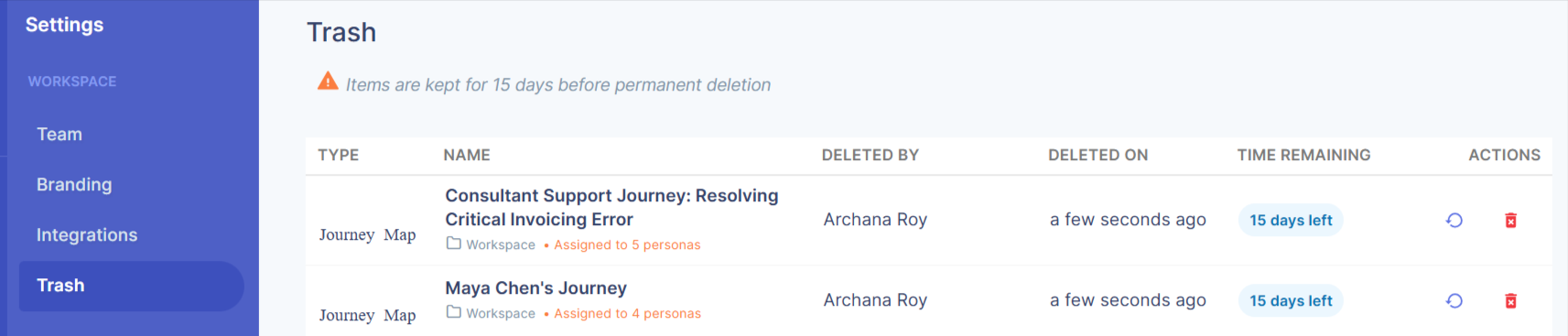
This restore feature protects your work from accidental loss and gives you a safety net when managing complex projects. If a journey map is no longer required, you can permanently delete it from the trash.