Let AI generate persona templates instantly
Personas by UserBit helps you create personas faster. Instead of starting from a blank canvas, you can generate a persona template using AI by providing a few key inputs and then refine it according to your liking. This helps teams move quickly from idea to structure.
To generate a persona template, go to your workspace and click on the Add > Generate with AI.
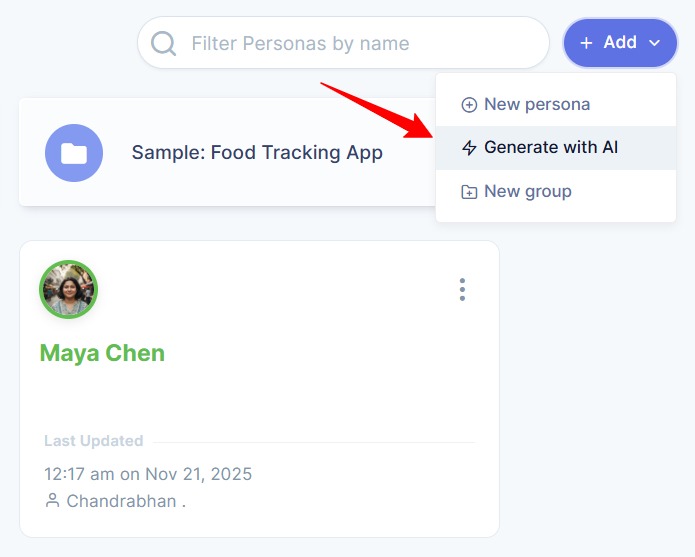
If you are new to the app, go to your Persona Workspace and click on Generate With AI
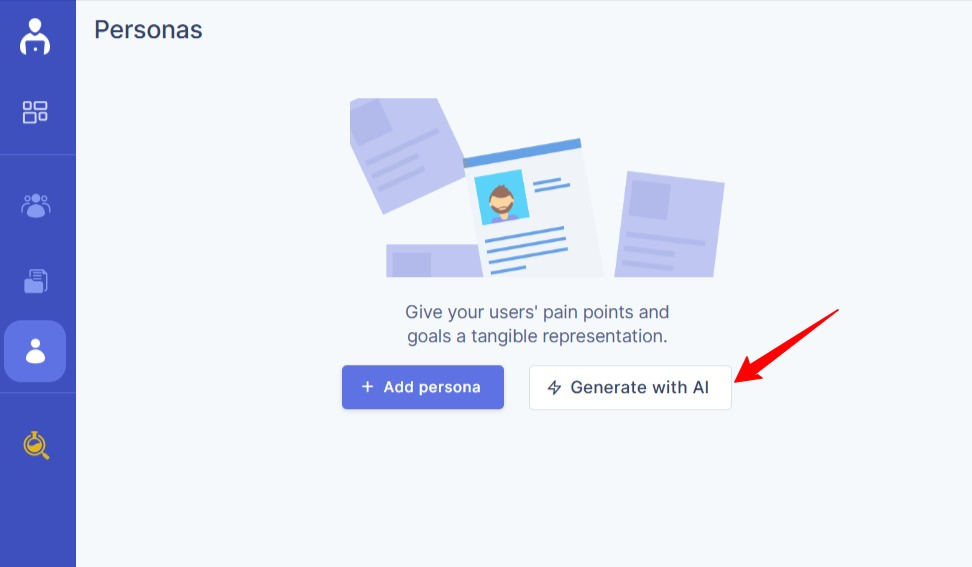
Then A form will appear. Provide the necessary details to help AI generate a relevant journey map:
-
Role or Title (Required) – Describe the persona’s role, profession, or identity.
-
Industry (Optional but Recommended) – Specify the industry for relevant goals, behaviors, and challenges (e.g., Healthcare, Fintech, E-commerce).
-
Company Size (Optional) – Indicate the size of the organization the persona is associated with.
-
Product or Service Type (Optional) – Describe the type of product or service the persona interacts with (e.g., Mobile app, SaaS platform, Marketplace).
The more specific your inputs, the more accurate and context-aware the generated persona will be.
Once generated, the persona can be edited and refined like any manually created persona. You can adjust details, add sections, or modify content to match your research findings.
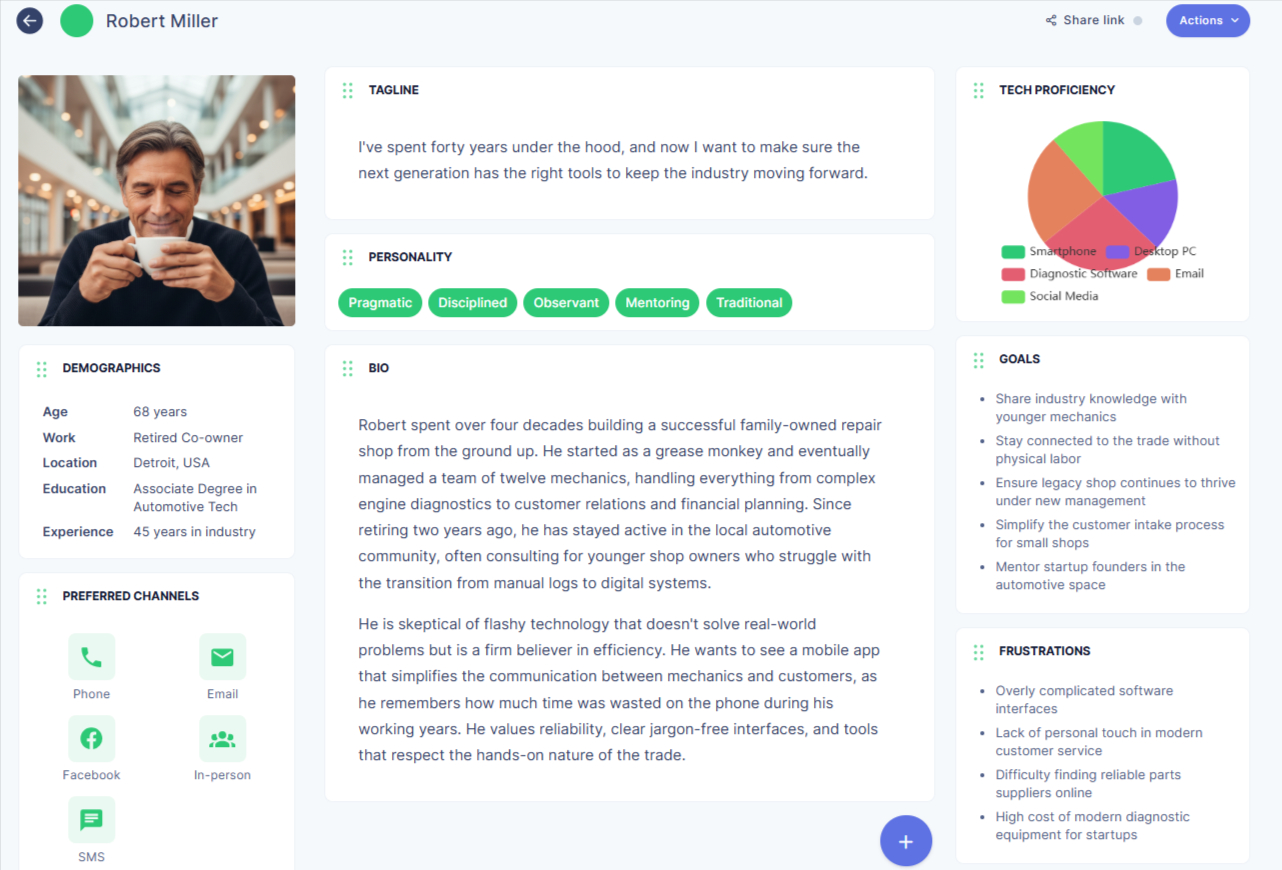
When creating a new persona, choose the AI generation option and provide the required context or inputs. Based on this information, the system generates a persona with key sections such as background, goals, behaviors, and other relevant attributes.
AI generation helps you move faster in the early stages while still giving you full control over the final persona.
Generate a journey map for a persona
You can generate a journey map directly from a persona using AI. This helps you quickly visualize how that user might interact with a product or service across different stages.
To generate a journey map for a persona, click on the three-dot (⋮) icon on the persona card and select Generate Journey Map.
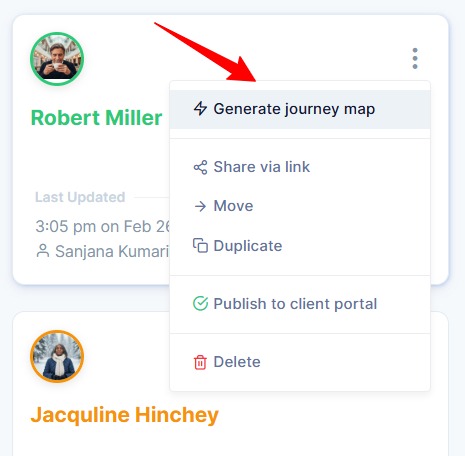
A form will appear where you need to provide a few details to generate the journey map:
-
Category (Required) – Choose the broad domain or context of the journey *(Example: E-commerce, Healthcare, Finance, Education)
-
Use Case (Required) – Specify the type of journey you want to generate *(Example: Purchase journey, User Onboarding, Support ticket)
-
Industry (Optional) – Indicate the industry context for more tailored stages and touchpoints *(Example: Retail, SaaS, B2B )
Provide clear and specific inputs to generate a more relevant and context-aware journey map.
After filling in these information, AI will use the persona’s existing details — such as goals, behaviors, motivations, and challenges — to generate a structured journey map.
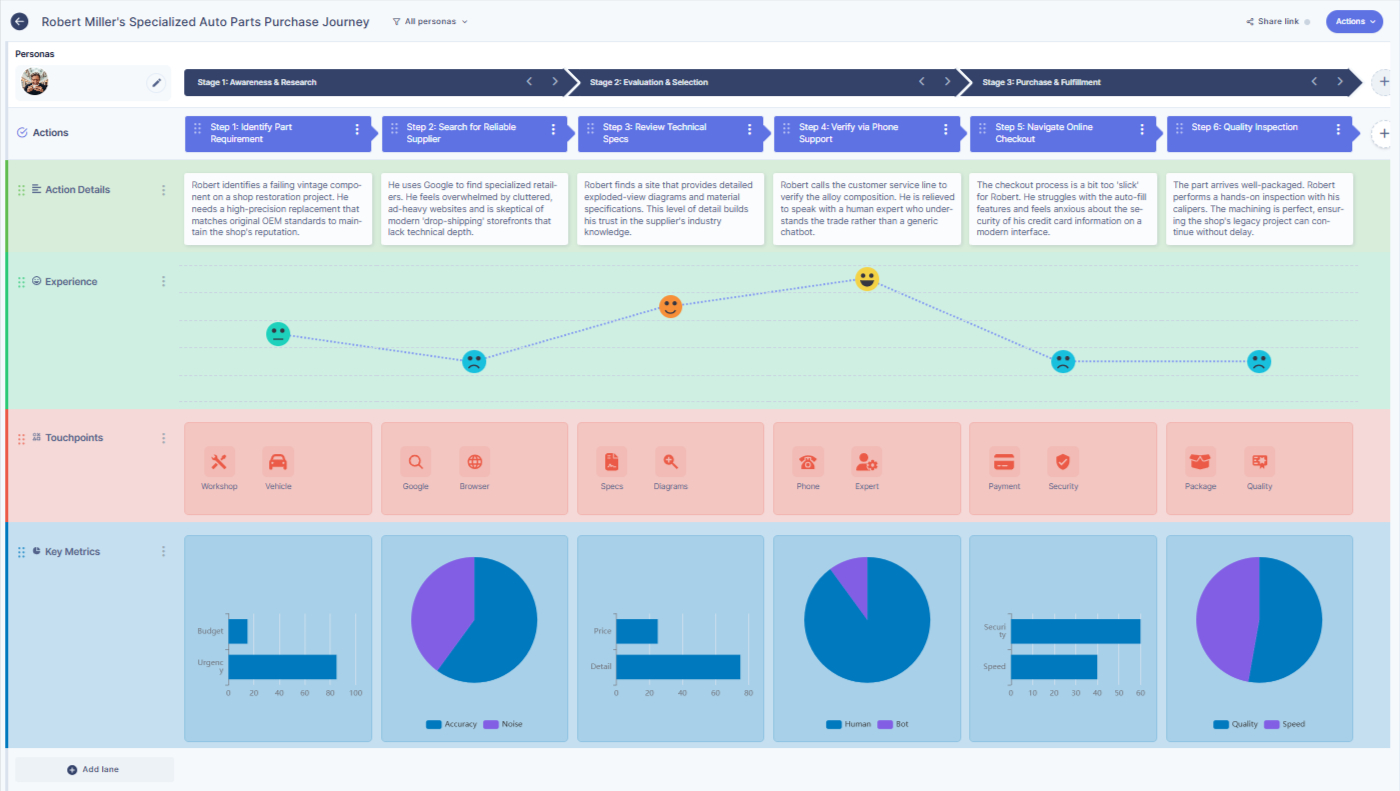
The generated journey map typically includes stages, actions, thoughts, emotions, and pain points. Once generated, the journey map can be edited, refined, and customized just like any manually created map.
This feature helps you quickly visualize how a persona interacts with your product or service, turning static persona details into dynamic user experiences.