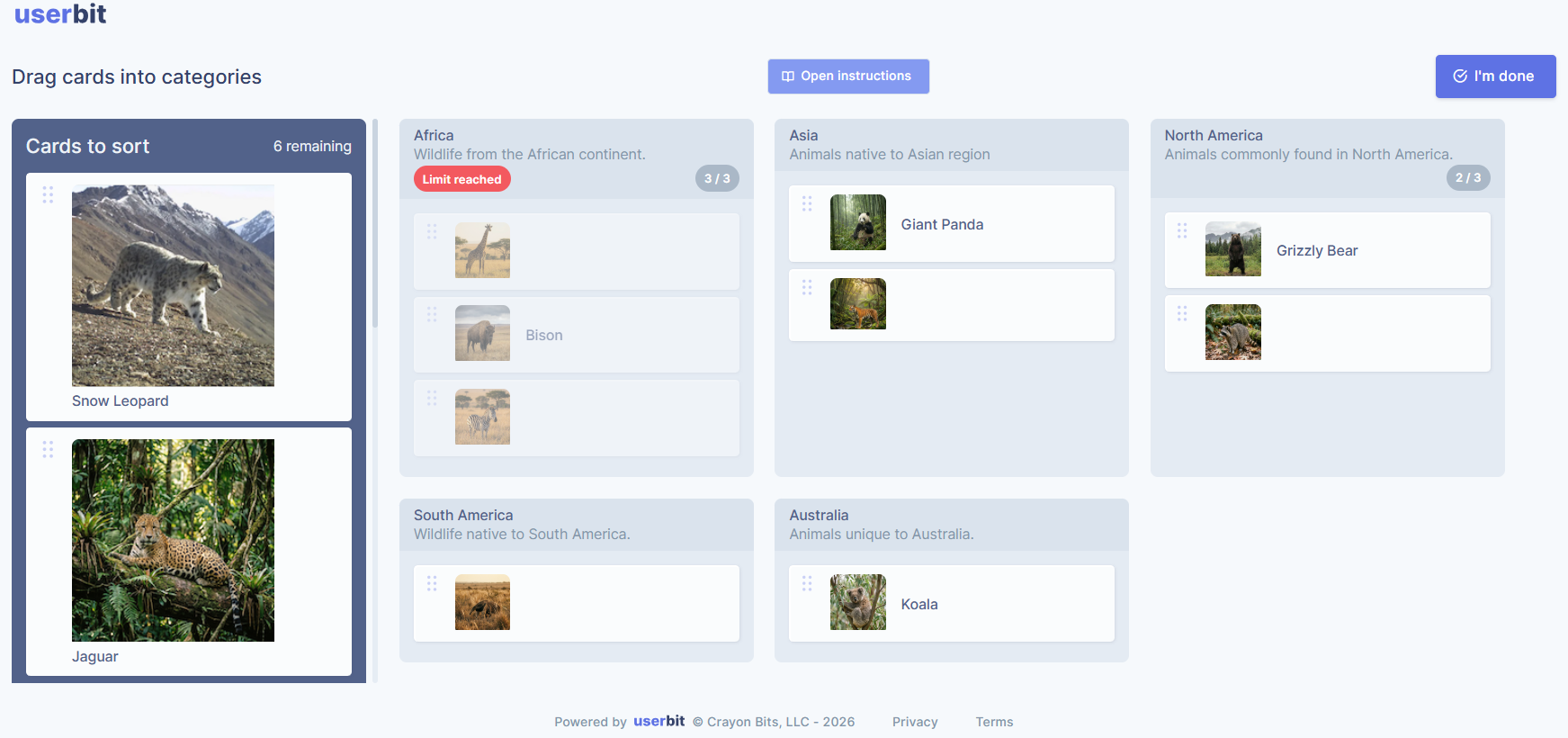
Card sorts advanced customizations
Bulk Upload Cards & Categories
During study setup, cards and categories are usually added as part of the study configuration. If your list already exists outside the tool, you don’t need to recreate it manually.
While setting up or editing a Card Sort study, you can bulk upload upto 100 cards in one step. For bulk upload, you need to click on Bulk add cards via CSV.
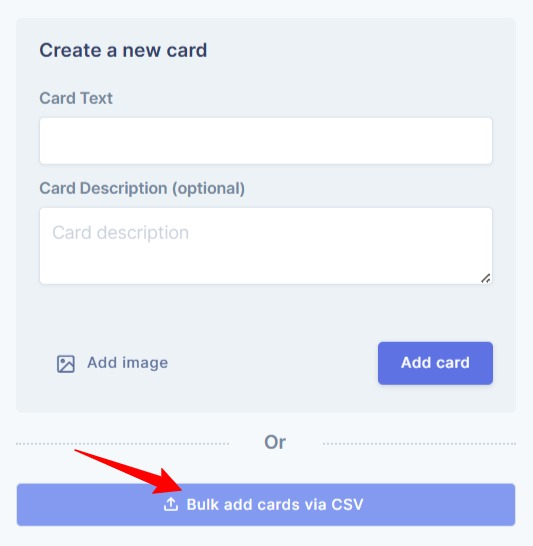
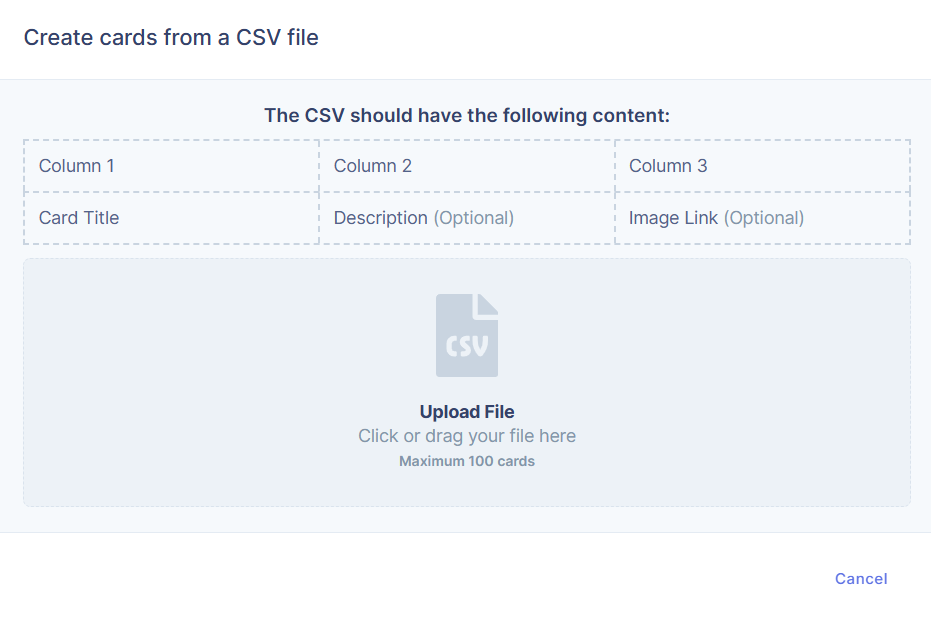
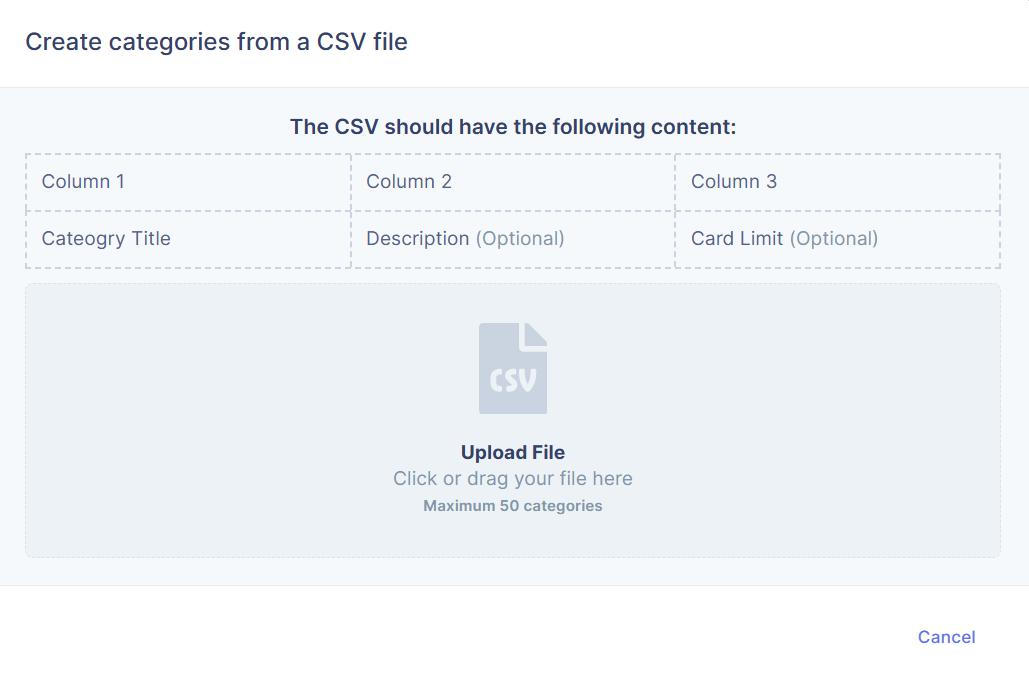
Then upload your existing CSV file that contains your cards. As long as the CSV is formatted like the image below, your cards will be automatically created.
Similarly, you can add upto 50 categories in bulk while setting up the study. Simply click on bulk add categories via CSV.
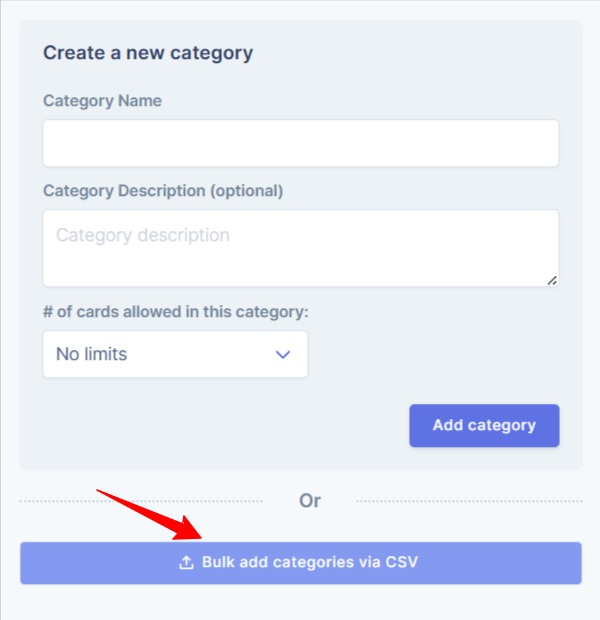
Now select your CSV file that contains your categories. This allows you to move existing content into the study without manual rework.
Pre- and Post-Study Questionnaires
If you are on the unlimited plan, Card Sorts by UserBit allows you to add pre- and post-study questions as part of your Card Sort setup. These questions help you collect important context around the sorting activity, without interrupting the participant’s flow.
To add Pre & Post study questions to your study, click on to enable.
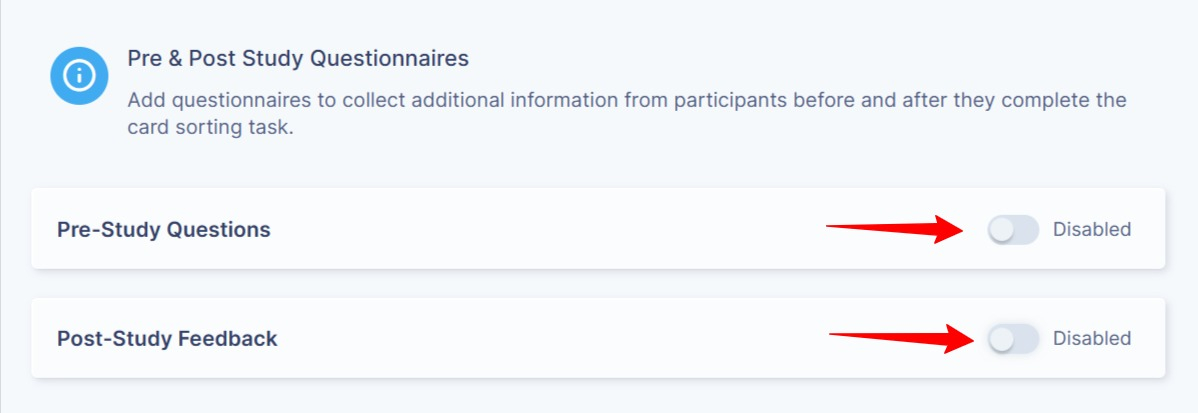
Once enabled, you can add different types of questions to collect the information you need before or after the study:
-
Short Text - For brief written responses such as names, locations, or short answers.
-
Number - For numeric inputs like age, years of experience, or ratings.
-
Date - Allows participants to select a specific date.
-
Long Text - For detailed, open-ended responses such as feedback, opinions, or explanations.
-
Single-select - Participants choose one option from a predefined list.
-
Multi-select - Participants can choose multiple options from a predefined list.
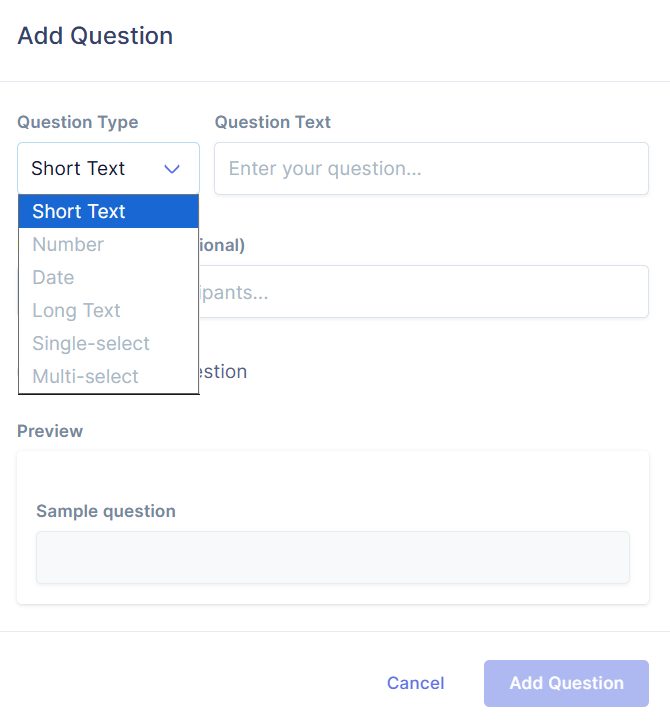
You can choose from multiple question types to collect the right kind of information from participants, depending on what you want to learn before or after the study.
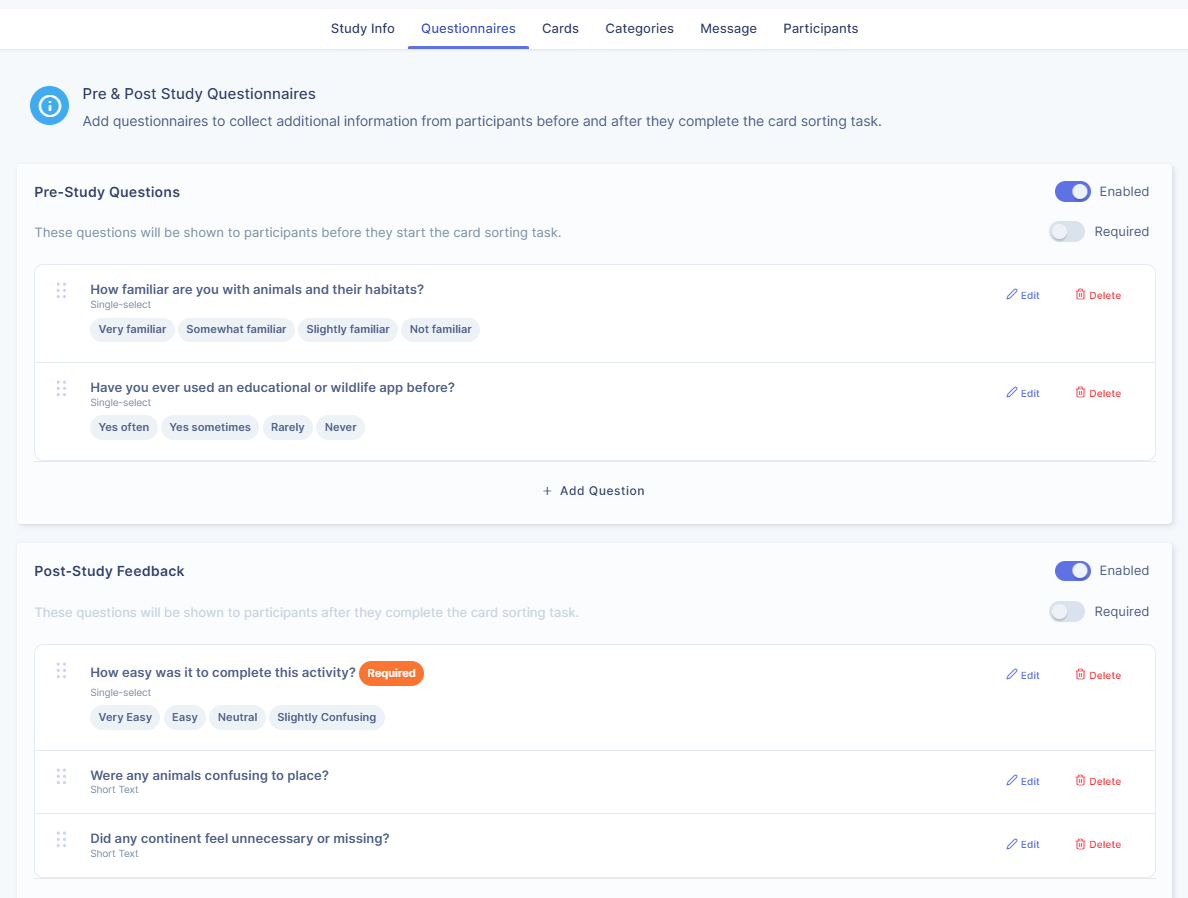
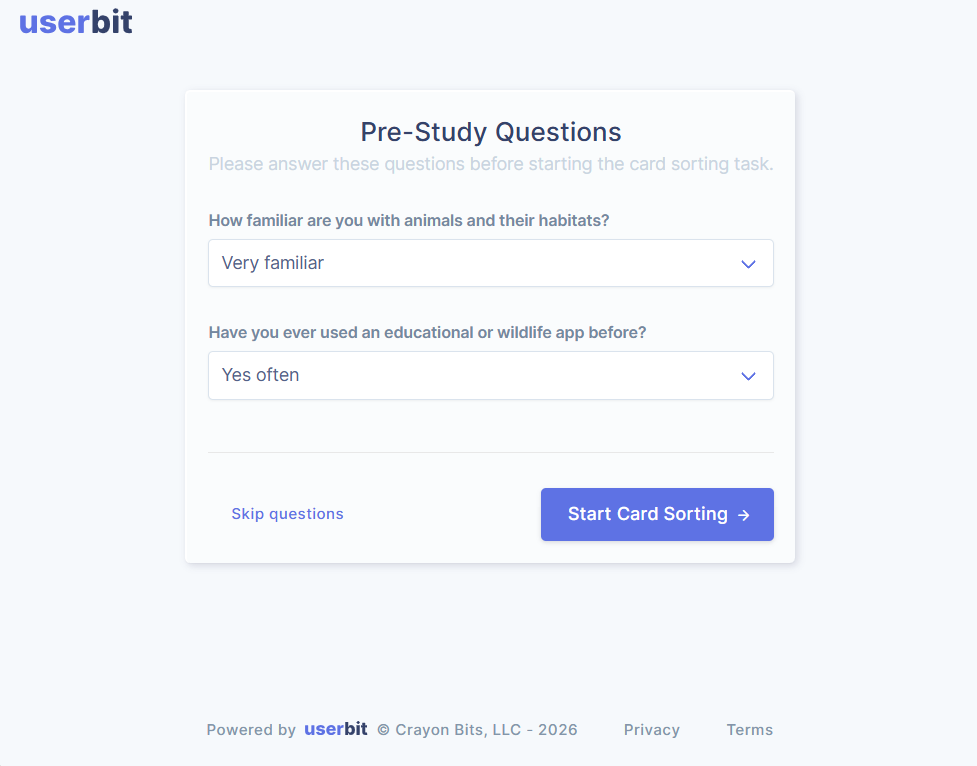
Pre-study questions appear before participants start sorting cards. For example, you can use them to understand who is taking part in the study—such as their role, experience level, or familiarity with the topic.
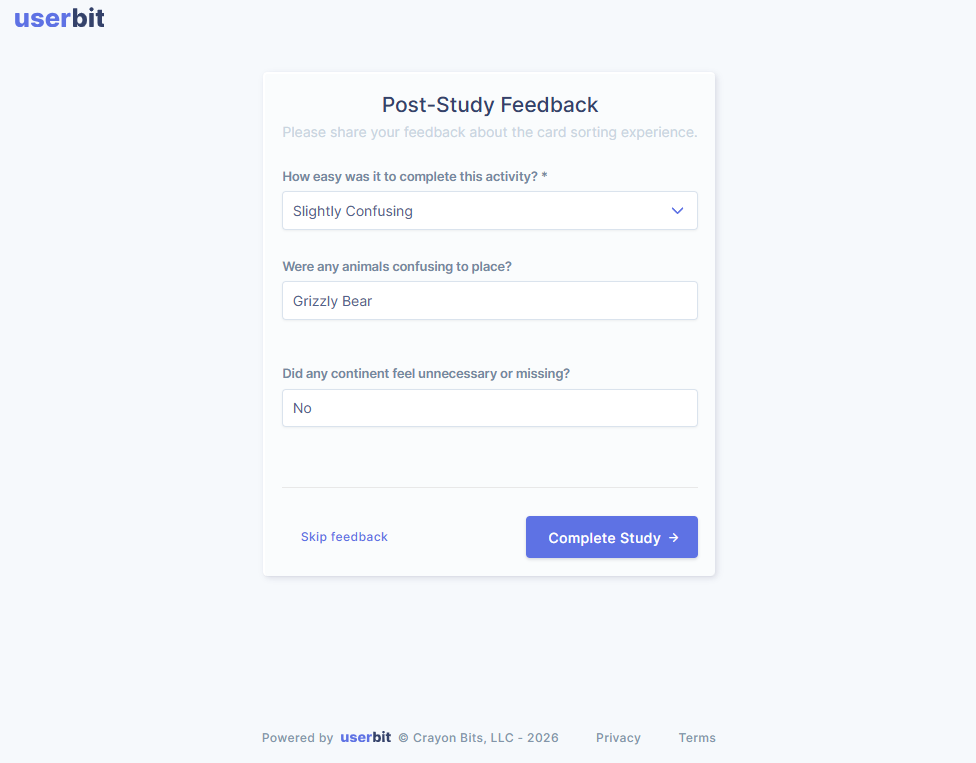
Post-study questions appear after the sorting task is completed. They’re useful for capturing reflections, reasoning, or feedback about the experience. For example, participants might explain why certain cards felt confusing or why they grouped items in a particular way.
Adding Images to Cards
Card Sorts by UserBit allows you to add images to cards when visual context is helpful. Cards can be created as text-only or with an image attached.
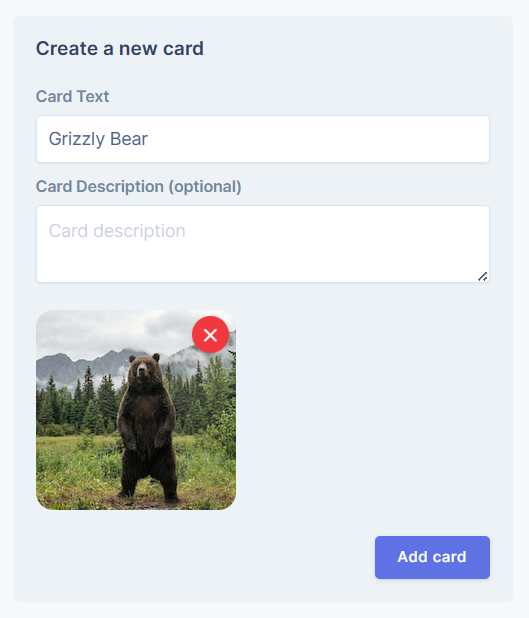
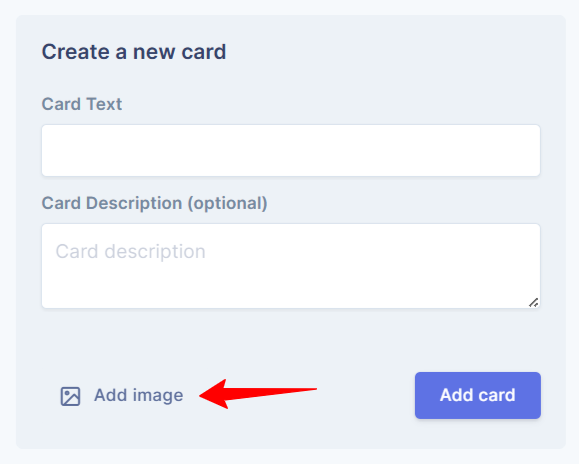
While setting up a Card Sort study, you can upload an image to individual cards by clicking on Add image when you are adding the card in the study.
Then upload a new image or select from an existing image.
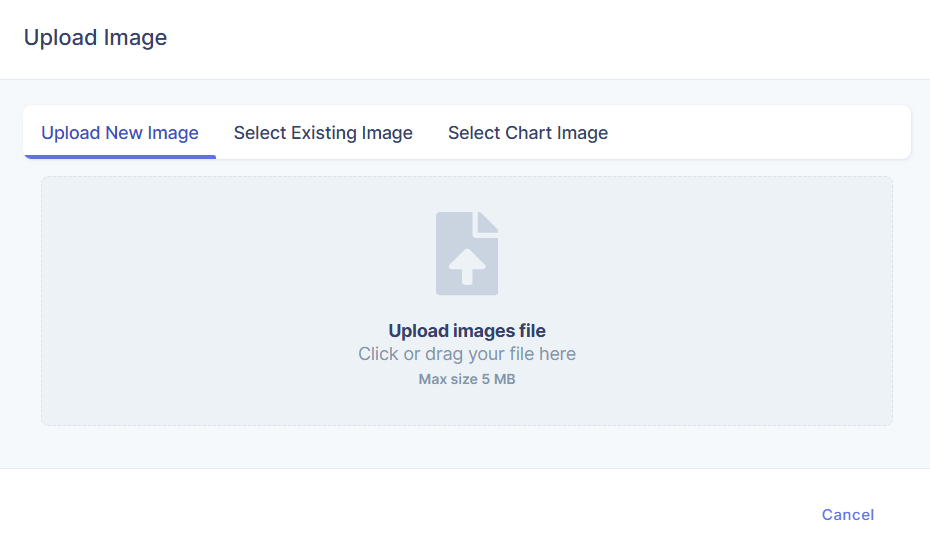
This is useful when cards represent screens, products, icons, or visual elements that are easier to recognize via an image than with text alone.