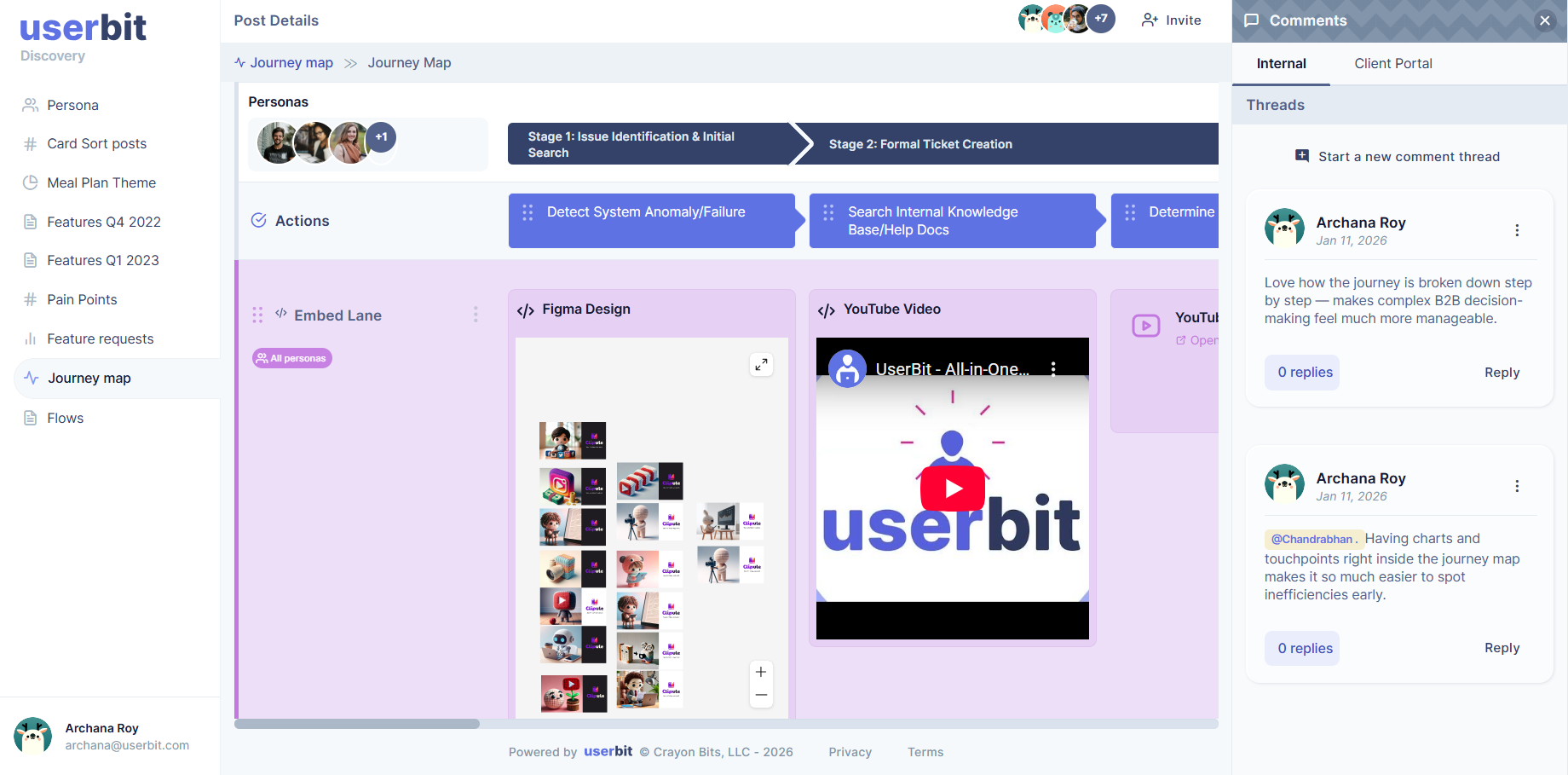
Share and Publish
You can share your journey map with others or export it for presentations and documentation directly from the map view.
Share via link
To share a journey map, click the action button in the top-right corner of the map. From the dropdown menu, select share via link.
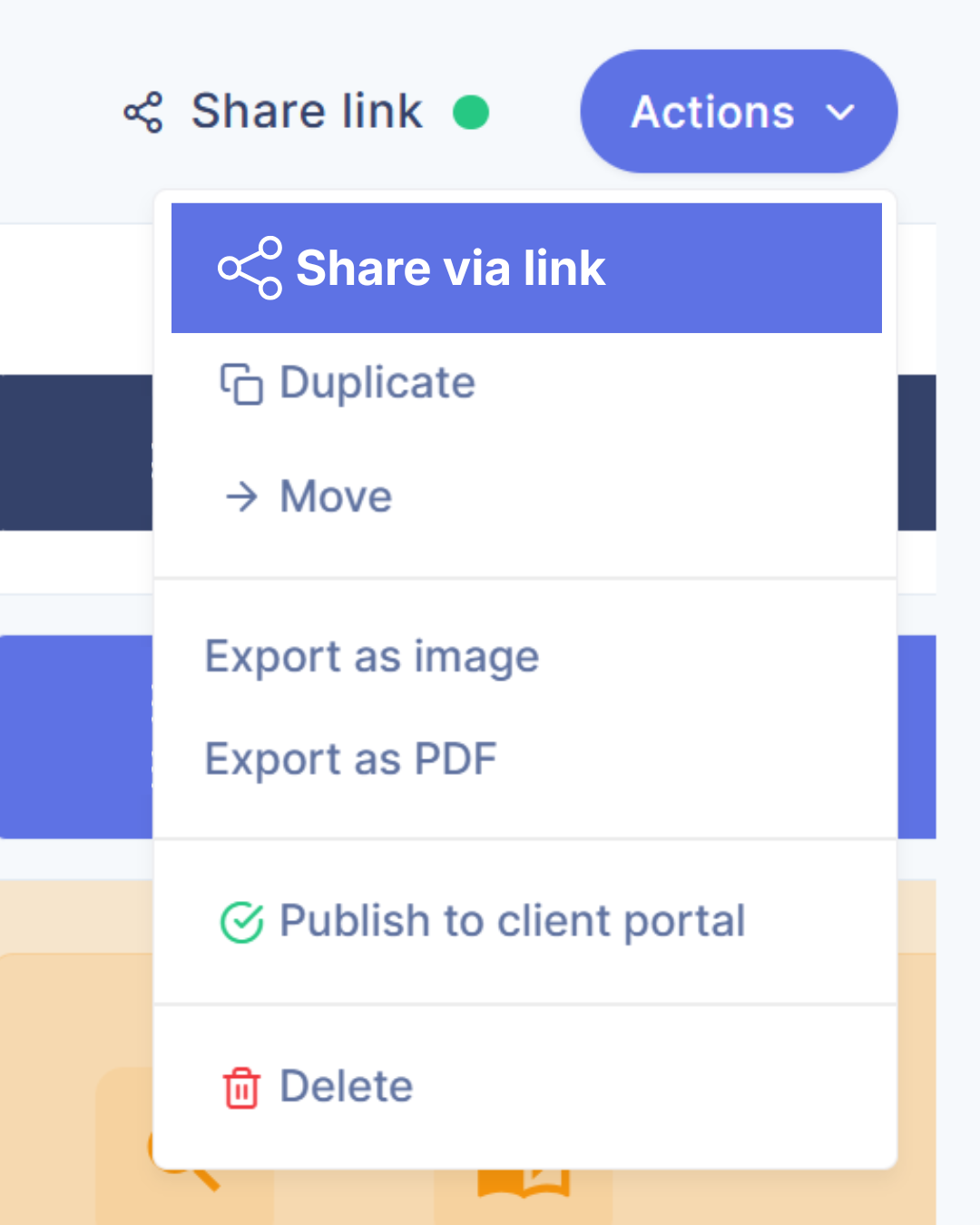
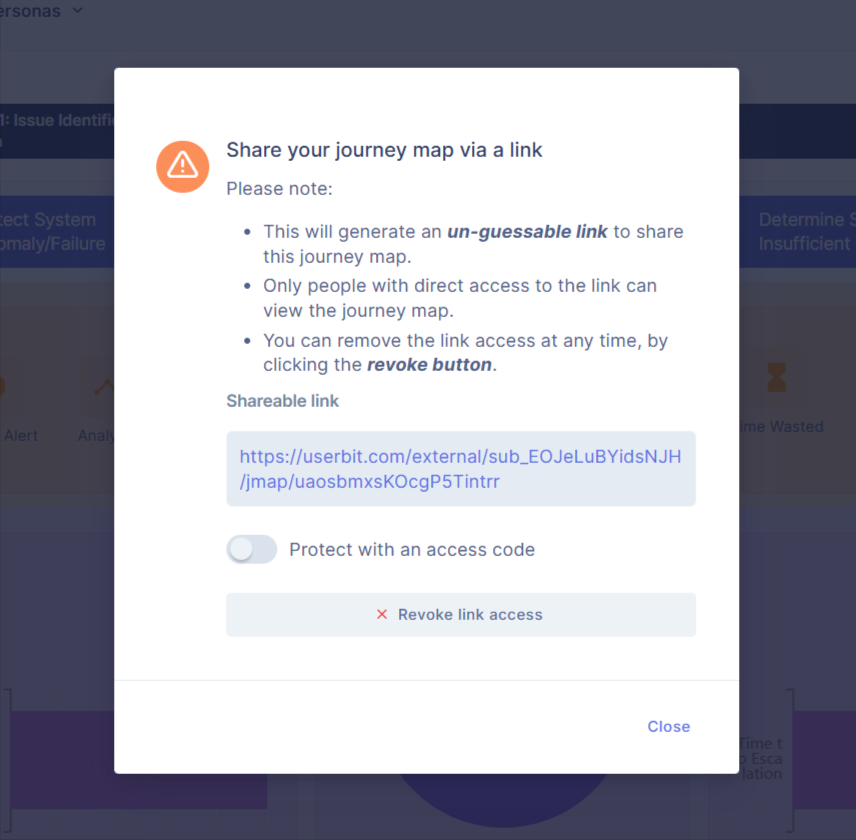
You can generate a public or protected, shareable link that allows others to view the journey map without editing it. This makes it easy to collaborate with stakeholders or present your work externally.
Export a journey map
You can export your journey map for offline use.
Click the action button in the top-right corner and select export from the dropdown menu. You can export the journey map as an image or a PDF, depending on your needs.
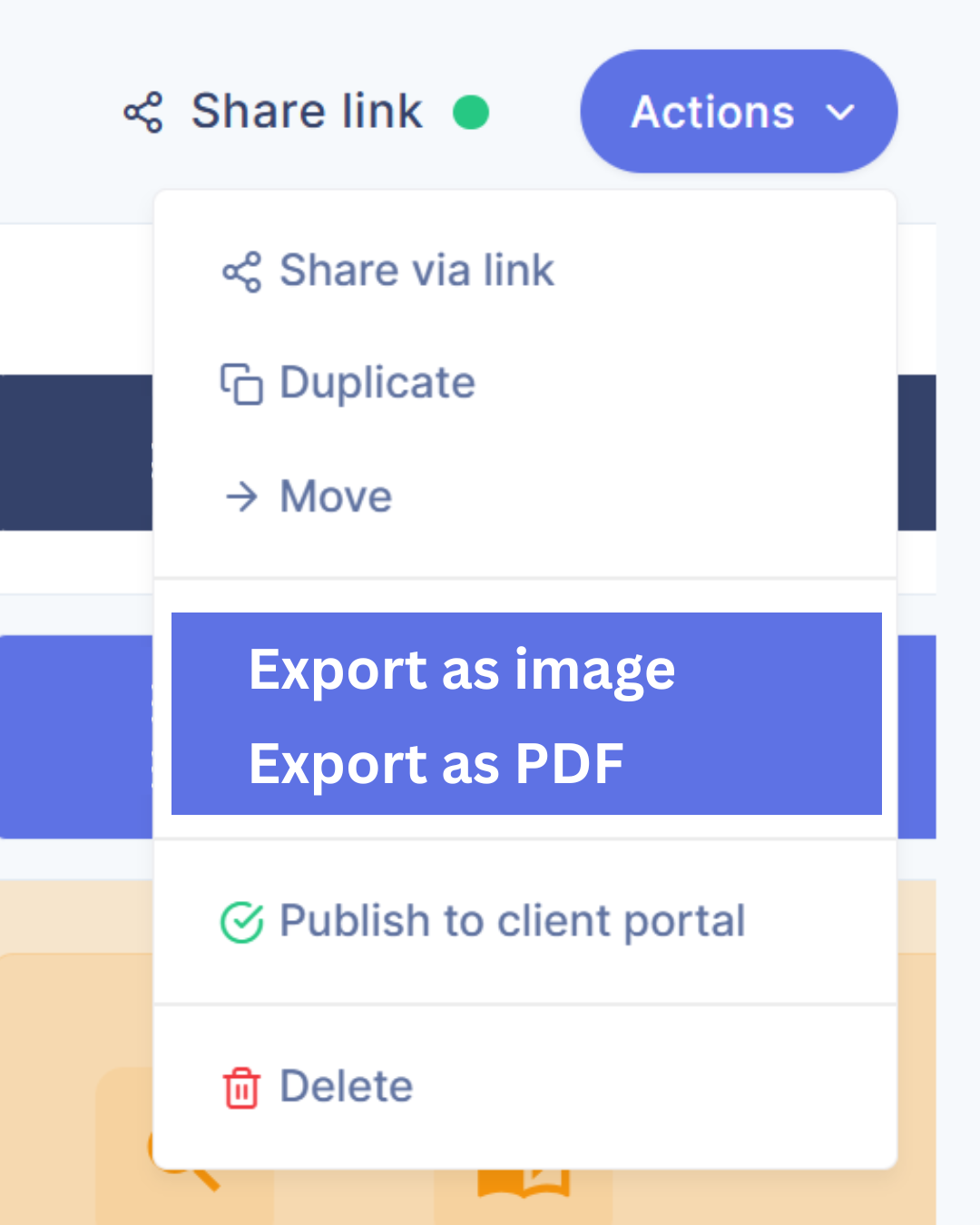
Exporting is useful for presentations, reports, or sharing static versions of your journey map outside the workspace.
Publish to Client Portal
Publish journey maps directly to the Client Portal in a clean, client-ready format. Simply select Publish to Client Portal, choose or create a theme, add a title and description, and make your map available in your shared portal space for stakeholders to view.